A tour of the web app
Every page in the web app, in the order you'll actually use them — from the Home page to Review.
By the end of this guide you’ll know what every page in the web app is for and roughly where to find it — from the Home page you land on first to the page where you approve what Charyl has drafted. Nothing here needs a smart home or a subscription; most of it is there the moment your home’s box is set up.
Home is home base
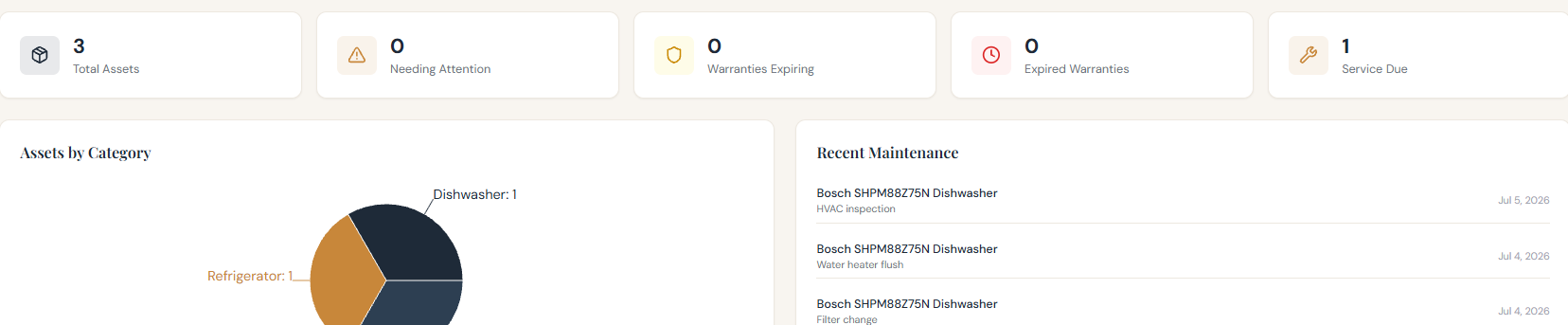
Everything starts on the Home page, and it has two tabs. Today is a short list of what needs you — maintenance coming due, warranties, proposals waiting for review — with a summary of your inventory below it: total assets, items needing attention, warranties expiring and already expired, service due, a category breakdown, and your most recent maintenance.
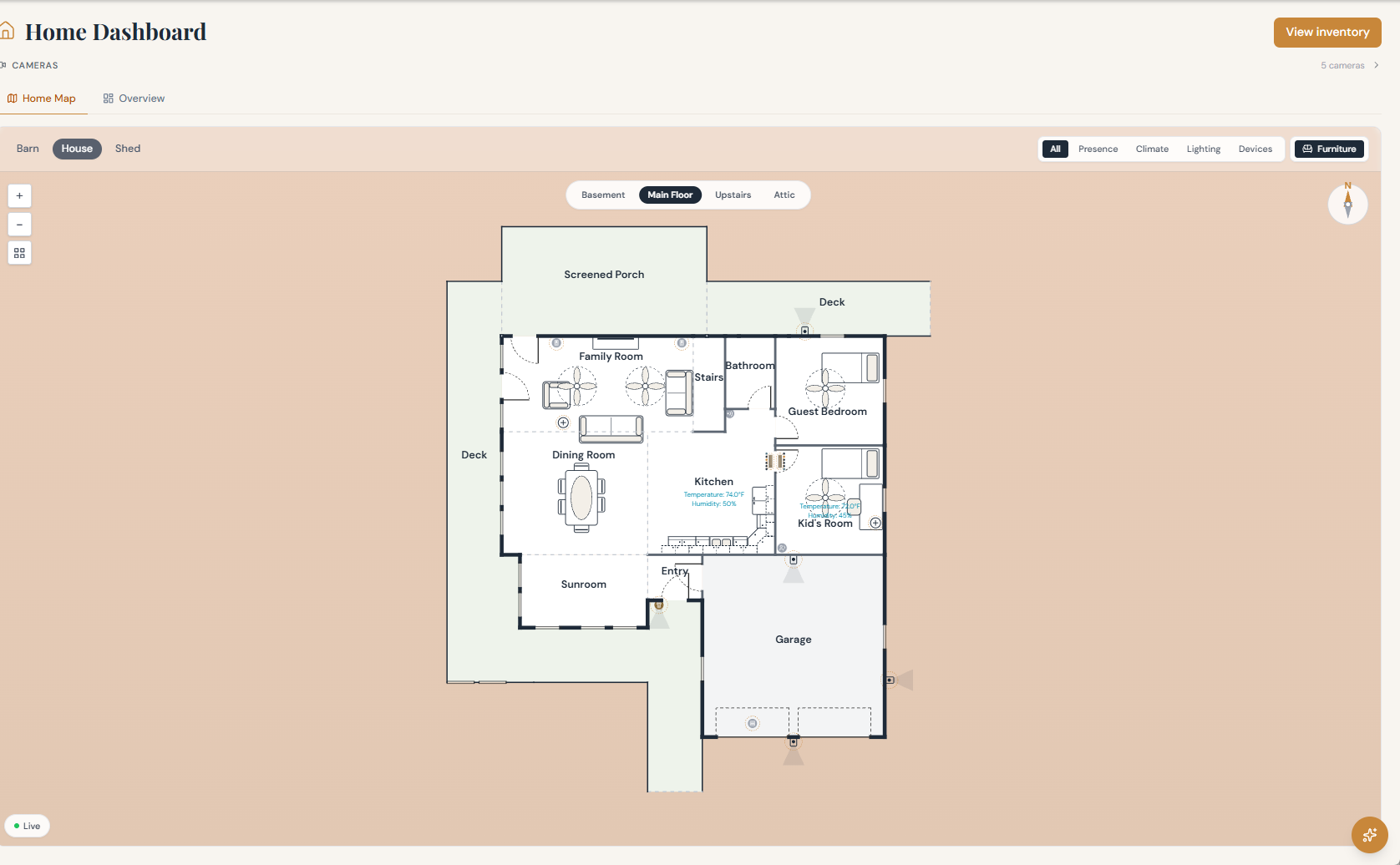
Home Map lays your rooms out as a floor plan — switch between buildings if your property has more than a house (a guest house or a shed), move between floors, and filter what’s shown to presence, climate, lighting, or devices; a furniture toggle adds the pieces placed in each room.
Your inventory, warranty by warranty
Inventory is the full record of what’s in your home — searchable, filterable, and open to add to directly if you’d rather type than photograph. Open any one item and you’ll find its attributes, its warranty, anything related to it, its maintenance history, and whatever documents are attached to it.
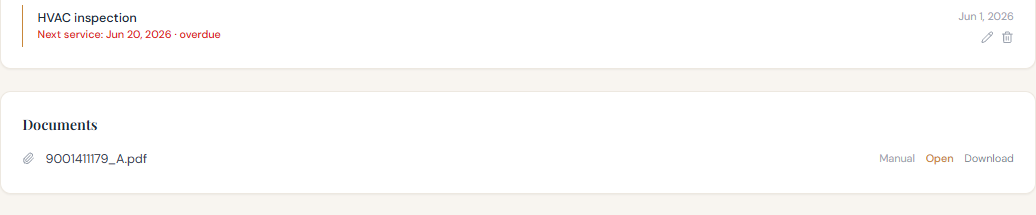
Warranties gives you the same information from the other direction — every warranty on file, across every item, in one list, which is the page to open when you want the whole picture rather than one item at a time. Maintenance does the same for service history: what’s been done, and what’s coming due or already overdue across the whole home.
Rooms and floors
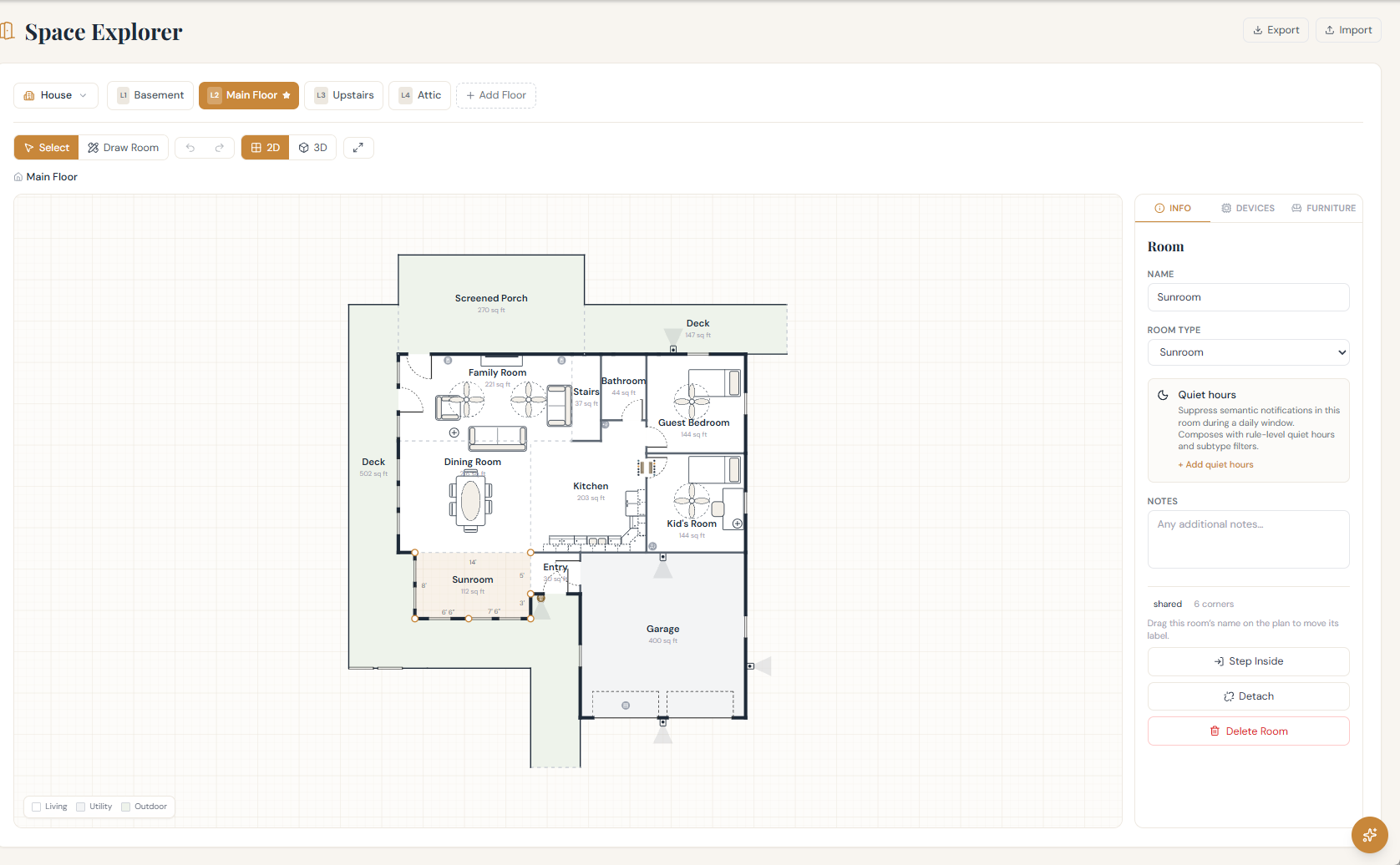
Rooms is where the floor plan you saw on the Home Map actually gets drawn. Lay out a room, switch between a flat 2D view and a 3D one, and see exactly which devices and furniture live in each space — including quiet hours, if you want a room to stay silent during a daily window regardless of what else is happening in the house. Its other tabs hold your property’s details and a list of every room.
To see it done start to finish, watch Map your home, a two-minute film.
Talking to her
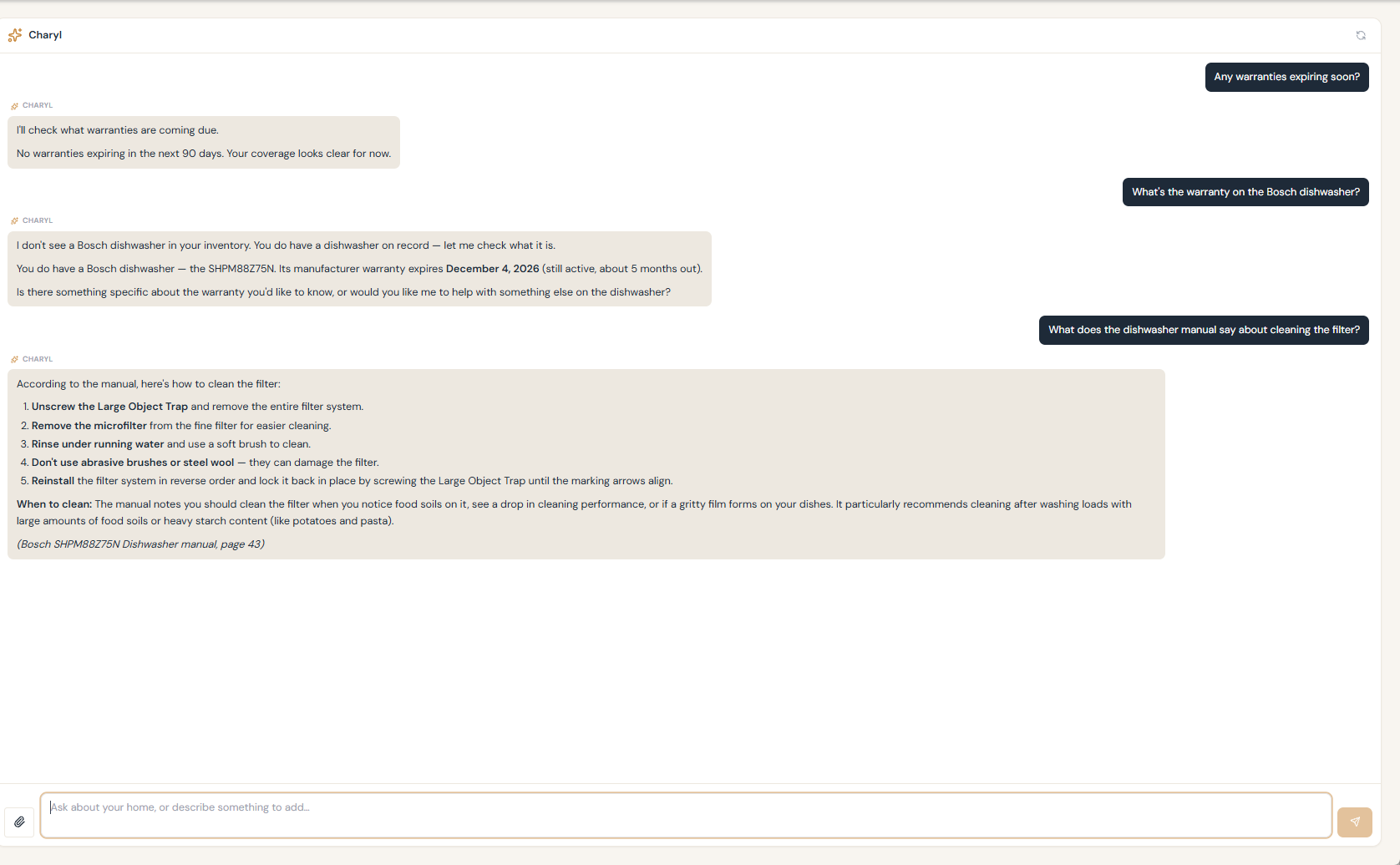
Ask Charyl is a full page of its own, and the same conversation is also available as a dock that follows you on every other page in the app — so asking a question never means leaving what you were doing.
Reviewing what she’s drafted
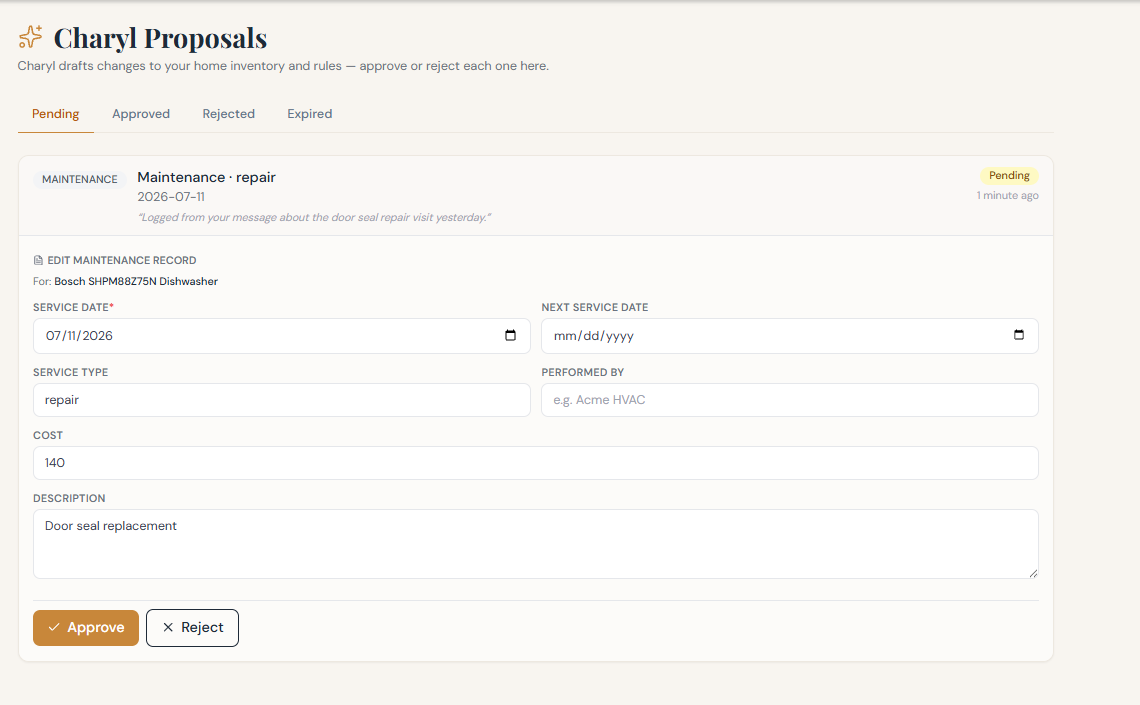
Review is where every record she drafts — a new appliance, a warranty, a logged repair — waits for you. Each one is sorted into Pending, Approved, Rejected, or Expired, and a pending card shows exactly what she’s proposing before you approve or reject it.
The smart home
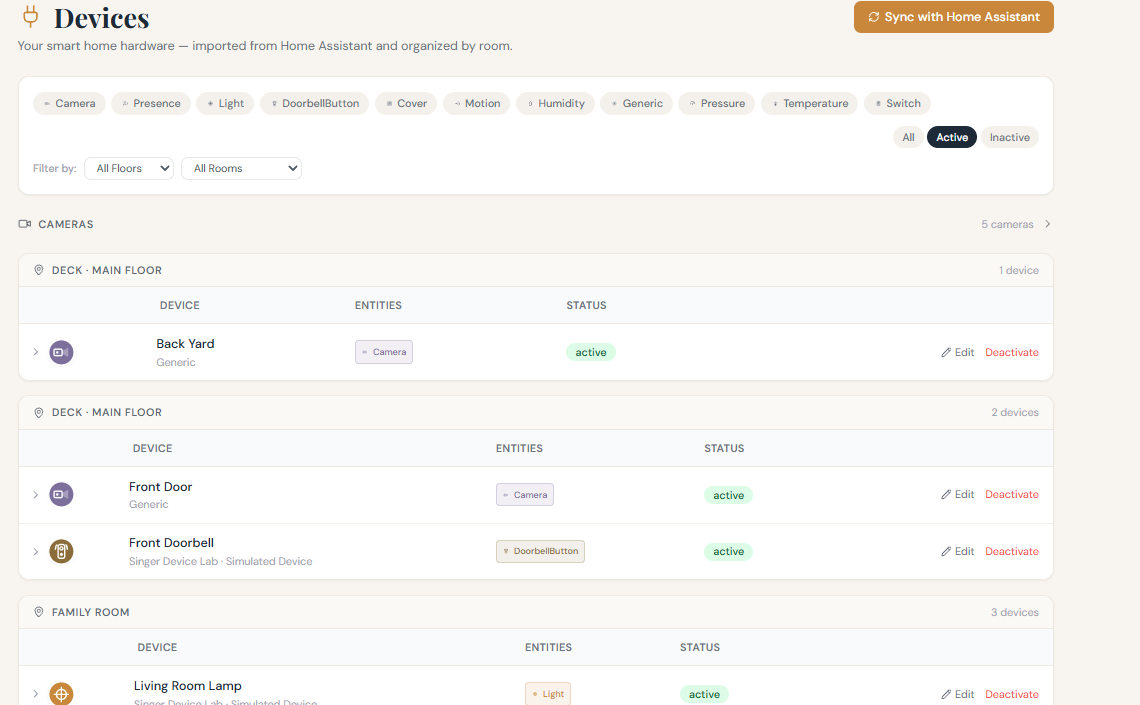
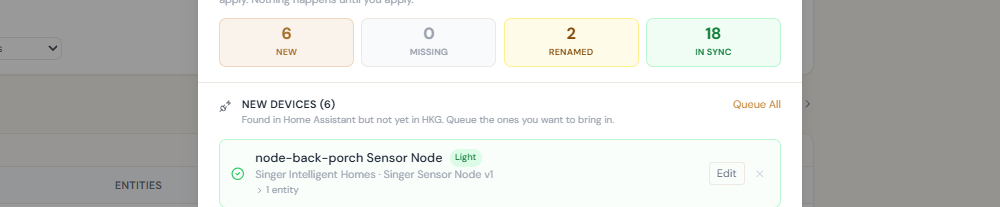
Devices lists your smart-home hardware, imported from Home Assistant and grouped by room, with filters for device type and for active versus inactive. The Devices page has a Sync with Home Assistant button for pulling in changes since setup.
Cameras show up as tiles on the Home page and on Devices; open one for its own page, with a snapshot and a live view.
Records and contacts
Records holds the paperwork that governs the property itself — insurance, HOA documents, your deed, permits — kept apart from the things inside it. Contacts is the people you’d call: whoever you already have on file, plus a researched directory with Charyl Cloud.
Keeping tabs
Dashboards is a drag-and-drop builder for your own cards — sensors, devices, whatever you want to see at a glance, arranged how you want it. Alerts is where notification rules get authored: what should tell you what, and when. Activity is a running log of what’s changed in your home’s record, along with what Charyl has done and the home’s event log. Your own notifications collect in an inbox, so everything the home has told you is in one place.
People and Settings
People is where an admin manages who can sign in to the home, the phones paired to it, and any wall panels. Settings covers the rest of your home’s configuration: what Charyl handles, your home’s details, Home Assistant, your Charyl Cloud connection and backups, and system updates.