Connect Home Assistant
Bring in the Home Assistant you already run, or find out what happens on a box that doesn't have one yet.
Charyl works with the Home Assistant you already run — she doesn’t replace it. This guide covers both cases: connecting the Home Assistant you have, and what happens on a box that doesn’t have one yet.
Two starting points
Setup looks for an external Home Assistant on your network before asking you anything.
- You already run one. Setup finds it and asks whether it’s yours. Say yes, and the guided flow below runs against it.
- You don’t. On the box, a bundled copy of Home Assistant has already been running quietly since first boot, with its own discovery and announcements switched off. It gets adopted automatically — the only question you see is how many devices it found, and whether to bring them in. early access
Either way, you end up with exactly one Home Assistant connected to Charyl, never two competing for the same devices.
Connecting the one you already run
-
Do you run Home Assistant?
Yes, no, or not sure. Answering “not sure” runs discovery first — Charyl never assumes you don’t have one.
-
Find it
A five-second network search, with a manual-address fallback always available if discovery doesn’t find it, or your network doesn’t allow it.
-
Create an access token
A numbered guide with a link straight to the right page in your own Home Assistant. The token stays in the form — it’s never sent anywhere else, logged, or shown again.
-
Test and connect
Runs automatically. If it fails, Charyl walks through the likely causes rather than leaving you with a bare error.
-
Bring in your devices
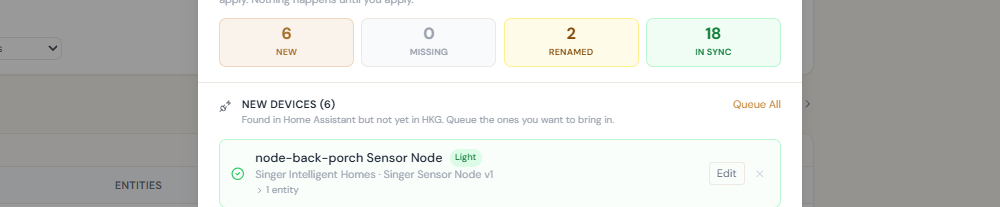
A preview of what was found. “Bring them all in” is the one-tap default, or review and choose devices individually.
If you say no at the first question, Smart Home stays enabled, with a simple “Connect Home Assistant” option waiting in Settings whenever you’re ready — nothing is disabled on the strength of one answer.
What Charyl does with it
Home Assistant is where devices and entities live; Charyl reads that registry and adds conversation, proposals, and notifications on top of it. She doesn’t reach into Home Assistant through any back door — she uses its documented interface, the same one any other client would.
Once connected, you can ask Charyl about anything Home Assistant already tracks — whether the office lights are on, or to turn off the porch fan — and she’ll ask you to confirm before anything actually changes. See What can Charyl control in my home? for the full picture.
Your existing automations keep working
Connecting Home Assistant to Charyl doesn’t change anything about Home Assistant itself. Your automations, scenes, and existing integrations keep running exactly as they did before — Charyl reads alongside them, through Home Assistant’s own documented interface, rather than taking them over or needing to understand them to work.
Cameras follow the same path: once Home Assistant has a camera configured, Charyl can show a snapshot, list recent events, and open live view for it. She never looks at or describes what’s in a camera image.
The box's own Home Assistant account
On the box, Charyl’s own service account is Home Assistant’s owner account. Owner status is protected against being deactivated or having its password changed by anyone else — but it can still be deleted outright. If that ever happens, a guided repair exists, though it permanently downgrades the recovered account from owner to a regular admin. That’s disclosed before it happens, never silent, but it’s a one-way change worth knowing about before you go looking for that account in Home Assistant’s own admin screens.
After connecting
Devices you brought in show up in the web app grouped by room, and in conversation with Charyl right away. New devices found later can be pulled in from the Devices page’s Sync with Home Assistant button — see How do devices and sensors get added?, or watch Bring your devices in, an 80-second film that connects Home Assistant from Settings and syncs devices in.
Having trouble?